Publication Canvas
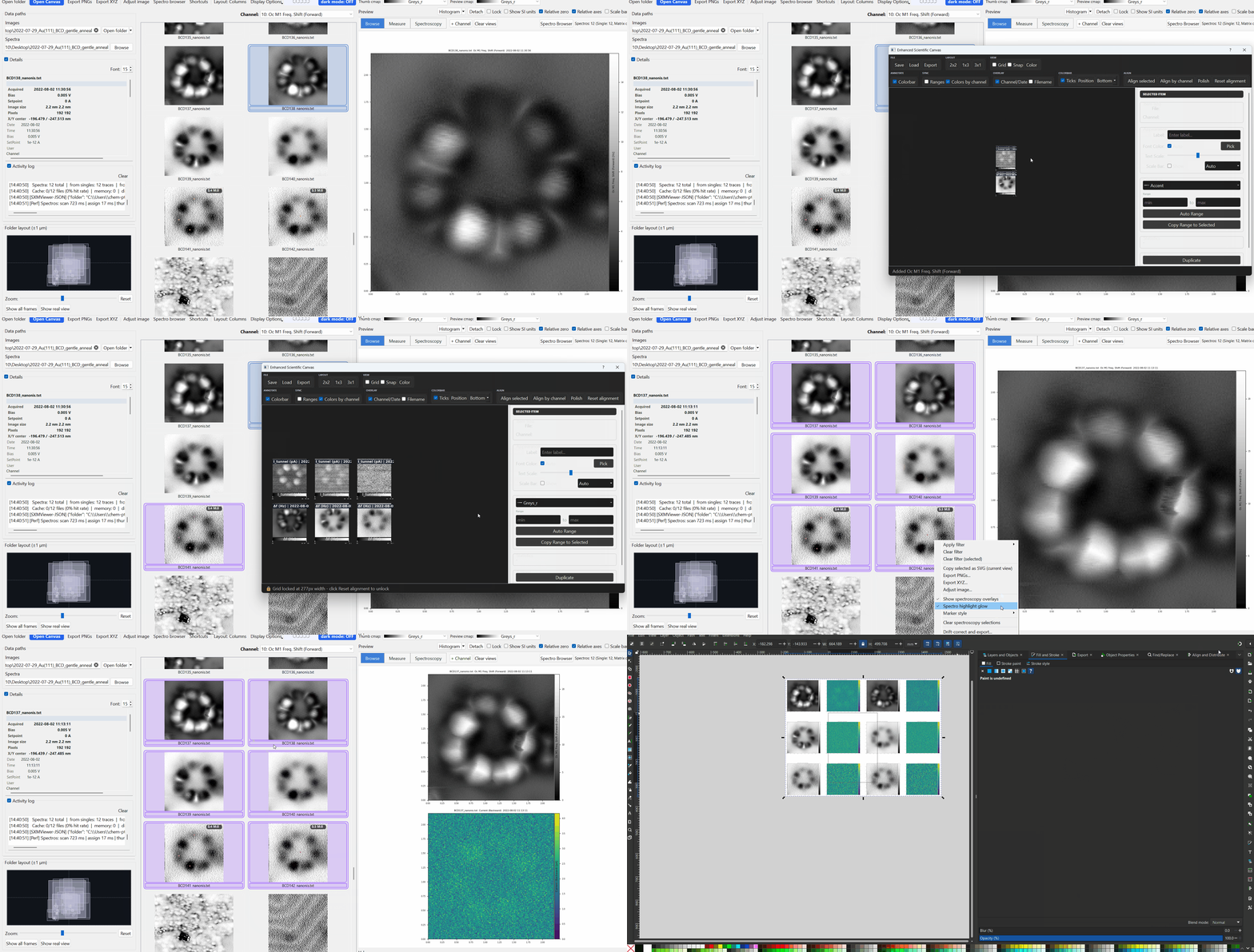
The Canvas is a multi-image figure composer for building publication-ready layouts from your SPM data.
Open it with the Canvas toolbar button (SXM Viewer has no menu bar/File menu - the toolbar button is the only entry point).
Adding images
Drag thumbnails from the main grid onto the canvas to add them as tiles. Each tile is an independent image with its own colormap, contrast, overlays, and display state.
Navigating the canvas
- Rubber-band drag on empty canvas space to select multiple tiles.
- Click-drag on empty space to pan the view.
- Ctrl + scroll wheel to zoom.
- Arrow keys nudge the selected tile(s) by a small step; hold Shift for a larger (10px) step.
- Ctrl+A selects all tiles; Escape clears the selection.
- Tiles themselves are moved/resized/rotated directly by dragging their body or handles; Alt+drag a tile to duplicate it.
Layout
There is no free-form "stack" or "column" arrangement - the canvas offers three fixed grid presets, available both as toolbar buttons and from the right-click Layout submenu:
- 2x2
- 1x3
- 3x1
Outside of these presets, tiles are positioned freely: drag a tile's body to move it, drag its corner/edge handles to resize it, and use its rotate handle to rotate it - there is no separate "reorder" list.
Per-tile overlay chips
When a tile is selected, overlay chips appear directly on it for instant toggling:
| Chip | Toggles |
|---|---|
| T | Tile title |
| S | Scale bar |
| C | Colorbar |
| M | Metadata bar |
| U | Unit badge |
| F | Filename badge |
Each chip updates the tile immediately, saves to undo history, and keeps the inspector in sync.
Display presets
The canvas toolbar offers three global presets:
| Preset | Description |
|---|---|
| Clean | No title, no overlay info, no metadata/unit bar, no colorbar; scale bar on |
| Analysis | Title, scale bar, and a right-positioned colorbar with ticks on; metadata bar and overlay info turned off |
| Publication | Same toggle set as Clean |
Note
As currently implemented, Clean and Publication produce identical results - if you're trying to tell them apart by their effect on a tile, you won't see a difference. Use whichever name fits your workflow, or set toggles manually and let the state read Custom.
Making any manual display change marks the state as Custom.
Right-click canvas menu
Right-clicking a tile exposes:
Range : Auto-range selected tiles, copy range to selected, sync ranges across tiles.
Colormap : Copy colormap to selected, common colormap presets, sync colors by channel across tiles.
Display : Show/hide metadata bar, unit badge, title, colorbar, colorbar ticks, scale bar, colorbar position.
Alignment : Align selected, align by channel, reset alignment.
Layout : The same 2x2 / 1x3 / 3x1 presets as the toolbar buttons.
Right-clicking empty canvas space instead offers: Select All, Deselect All, Zoom In, Zoom Out, Reset Zoom, Fit All in View, and - when tiles are selected - Copy selected as SVG, Save selected as SVG..., Save selected as PDF... (see Export below).
Molecule overlays on canvas
The canvas left rail includes molecule controls: Show, Load onto selected, and Clear from selected. Canvas tiles carry molecule overlay state and render it directly.
Export
The toolbar Export button renders the whole composed canvas as a flattened raster image - PNG, JPEG, or PDF. There is no SVG option here.
Vector (SVG) export works differently and lives in the right-click menu instead: select one or more tiles, then use Copy selected as SVG or Save selected as SVG... from the empty-space right-click menu. With multiple tiles selected, saving to a folder writes one SVG file per tile, while copying composes them into a single multi-tile SVG document. See Export to SVG & PDF.
Warning
There is currently no PowerPoint export from the Publication Canvas. PowerPoint sending is only available from the main preview, pop-outs, and the thumbnail grid - see Export to PowerPoint.