Angle Measurements
SXM Viewer supports angle overlays directly on the image canvas, alongside the profile tools.
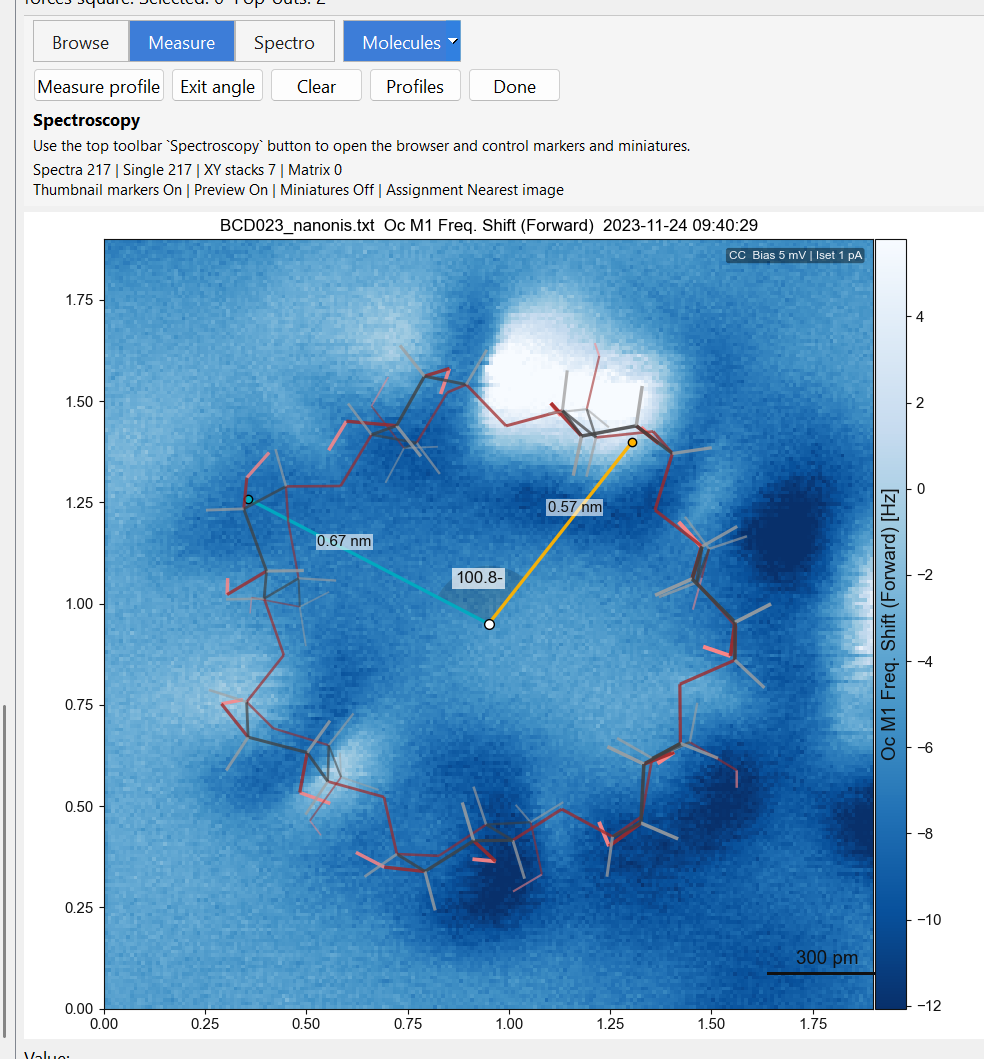
Creating an angle measurement
Hold Ctrl and Alt, then click on the preview or a pop-out to create a new angle measurement frame.
Angle overlays behave like other canvas measurements: they stay visible while active and can be managed separately from saved overlays.
Working with angle overlays
Typical actions include:
- creating a new angle on the preview or a pop-out
- adjusting the measurement graphically on the image
- saving the result as an overlay for later recall
- toggling saved angle overlays with Ctrl+2
Angle overlays participate in the same session workflows as other analysis state, and are preserved when a view is added to a collection as a pop-out or crop-history snapshot (plain thumbnail/preview collection items are lightweight file references and do not carry overlay state).
Saved vs active overlays
Like profiles, angle measurements distinguish between:
- the live active measurement you are currently editing, and
- saved overlays that persist as part of the image state
The saved-overlay toggle controls the saved items only; active measurements remain visible while the tool is in use.
Where angle state is preserved
Angle overlays are preserved in:
- sessions
- collection items saved as a pop-out or crop-history snapshot
- popup and preview canvas state
- virtual copies derived from analysed views