Histogram & Contrast
SXM Viewer includes histogram-based range controls for adjusting image contrast without changing the underlying data.
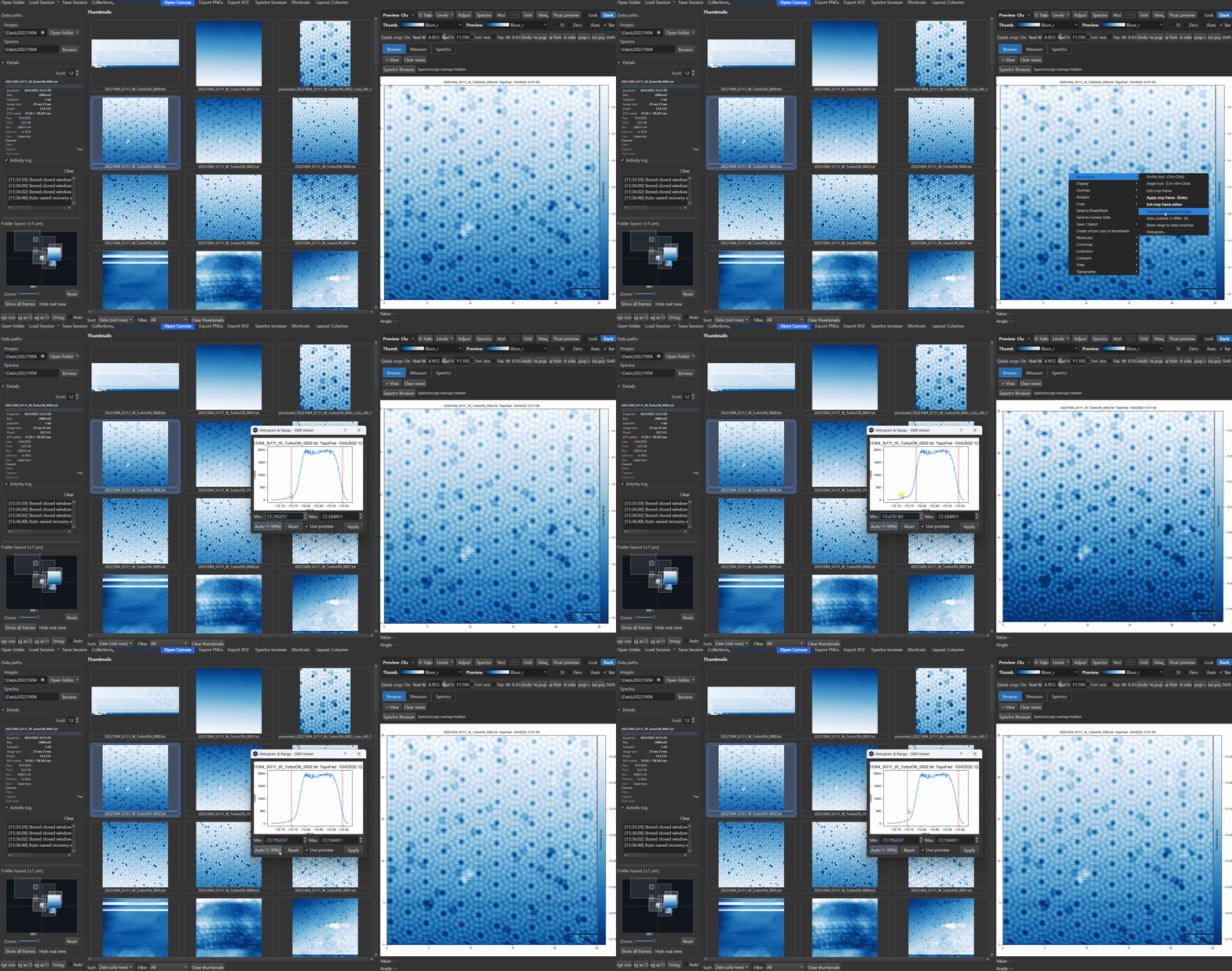
Opening the histogram tool
Use the image display controls or the relevant right-click menu entry to open the Histogram & Range dialog for the current preview or pop-out. If more than one view is open in that window, a view selector drop-down at the top lets you switch which one the dialog is editing.
The dialog shows a live 256-bin histogram of the current view's data. Below it:
- Min / Max spin boxes - type an exact display range
- Two draggable lines directly on the histogram plot - click and drag either one to set min/max visually
- Live preview checkbox (on by default) - applies range changes to the image immediately as you adjust them, instead of only on Apply
- Auto (1-99%), Reset, and Apply buttons
Auto vs. Reset - these do different things
This is the single most important distinction on this page, and it's easy to mix up:
- Auto (1-99%) sets the display range to the 1st-to-99th percentile of the currently displayed data - a robust contrast stretch that ignores extreme outliers (a few dead pixels or a scan-edge artifact won't wash out the rest of the image).
- Reset sets the display range to the true finite min/max of the currently displayed data - no percentile clipping at all, so a single extreme outlier pixel will dominate the range.
Both operate on the view as currently displayed - if a filter is active, they read the filtered data's histogram, not the original file's.
Tip
If Auto still looks washed out because of one bad pixel, that's expected - the 1-99% clip already excludes the most extreme 2% of values. If you want the literal min/max instead (e.g. to see exactly how far an outlier goes), use Reset instead of Auto.
Interaction with other tools
Histogram edits are display operations, not destructive processing. They work alongside relative-zero display, colorbar orientation, profiles/overlays, and popup-specific view state.
Opening the histogram dialog temporarily disables profile-line creation/editing on the canvas underneath it (so dragging on the histogram plot can never be mistaken for drawing a profile line), and restores whatever profile mode was active once the dialog closes.
Warning
Applying or changing a filter (see Filters & Processing) automatically recomputes the display range for the new, filtered data - so a manually-set histogram range can be silently replaced if you apply a filter afterward. If you want a specific range to stick, set it again after your filter pipeline is finalized.
Tips
Tip
If an image looks washed out, first try the histogram/range dialog before applying a filter.
Tip
For constant-height images, test histogram changes together with 0 relative-zero mode, since that can produce a more interpretable zero-anchored colorbar.