First Steps
This page walks through a typical first session in SXM Viewer.
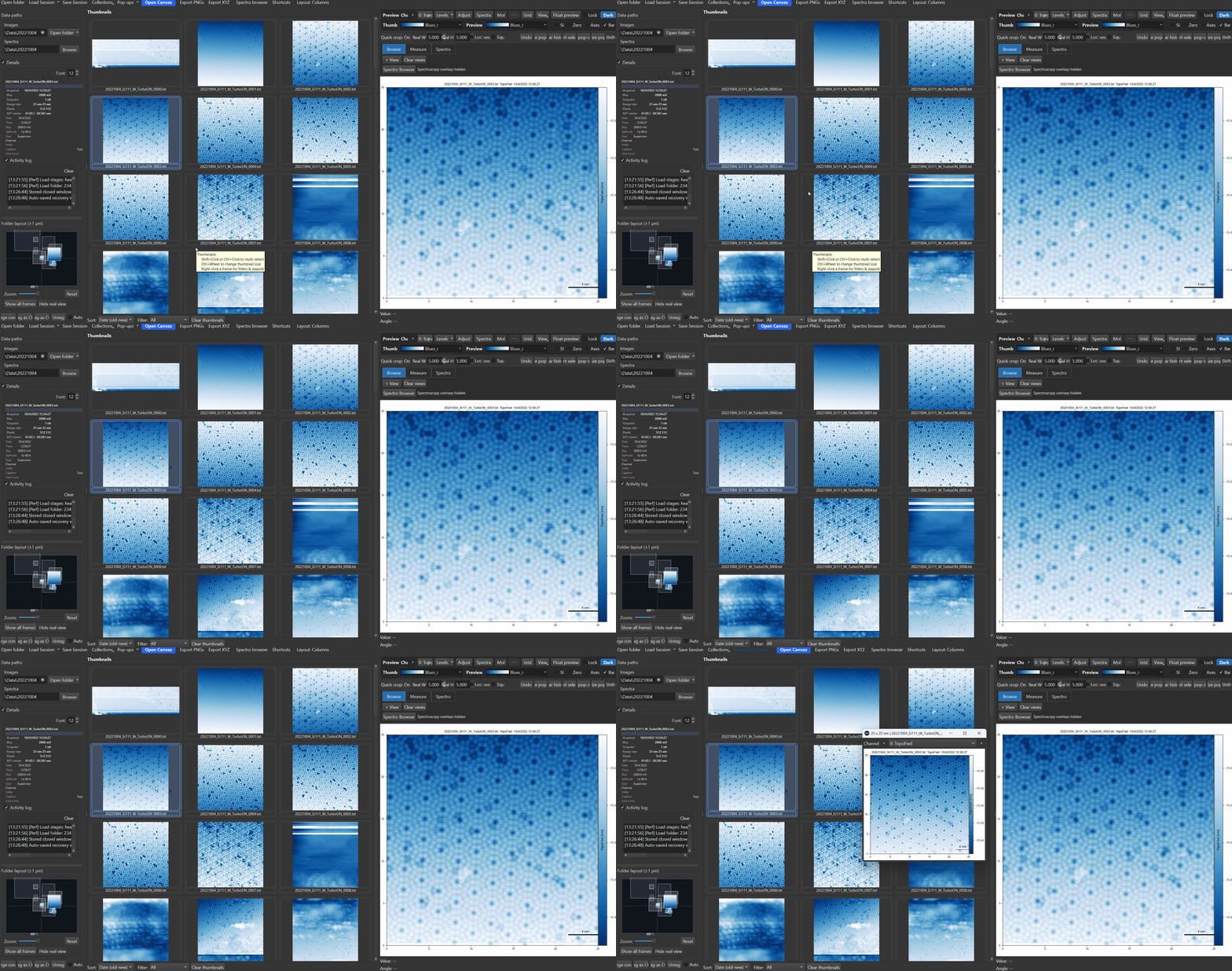
1. Open a folder
Click Open folder in the toolbar, or drag a folder onto the main window. The thumbnail grid fills with recognised images, and associated spectroscopy files are detected automatically when available.
See Loading Data for details.
2. Pick an image in the thumbnail grid
Click a thumbnail to load it into the main preview. The preview shows the active channel, colorbar, scale bar, and metadata panel.
Double-click a thumbnail to open it as a floating pop-out.
3. Switch channels
Use the preview channel selector or the previous/next channel arrows to move through topography, current, KPFM, and other acquired channels.
Each channel keeps its own display state, including contrast and colormap.
4. Try the core analysis tools
A good first pass is:
- press 0 to test relative-zero display
- turn Crop template on and click the preview to apply a fixed crop
- use Shift + drag for a manual crop
- hold Ctrl and click to draw a profile
- right-click and try Apply filter
- double-click the image to open a pop-out and compare workflows there
See Preview & Popups, Cropping, and Profiles & Measurements.
5. Save your work
When you have a useful working state, save it as either:
- a Session for a full folder-oriented workspace, or
- a Collection for a curated cross-folder set of images
Suggested learning path
| Start here | Then move to |
|---|---|
| Browse folders and click thumbnails | Thumbnail Grid |
| Open and manage floating windows | Preview & Popups |
| Make line measurements | Profiles & Measurements |
| Build figure layouts | Publication Canvas |
| Work with spectroscopy | Spectroscopy Overview |
Keep the shortcuts page nearby
The shortcut overlay is useful, but the full Keyboard Shortcuts page is worth keeping open while you learn the tool.