Preview & Pop-out Windows
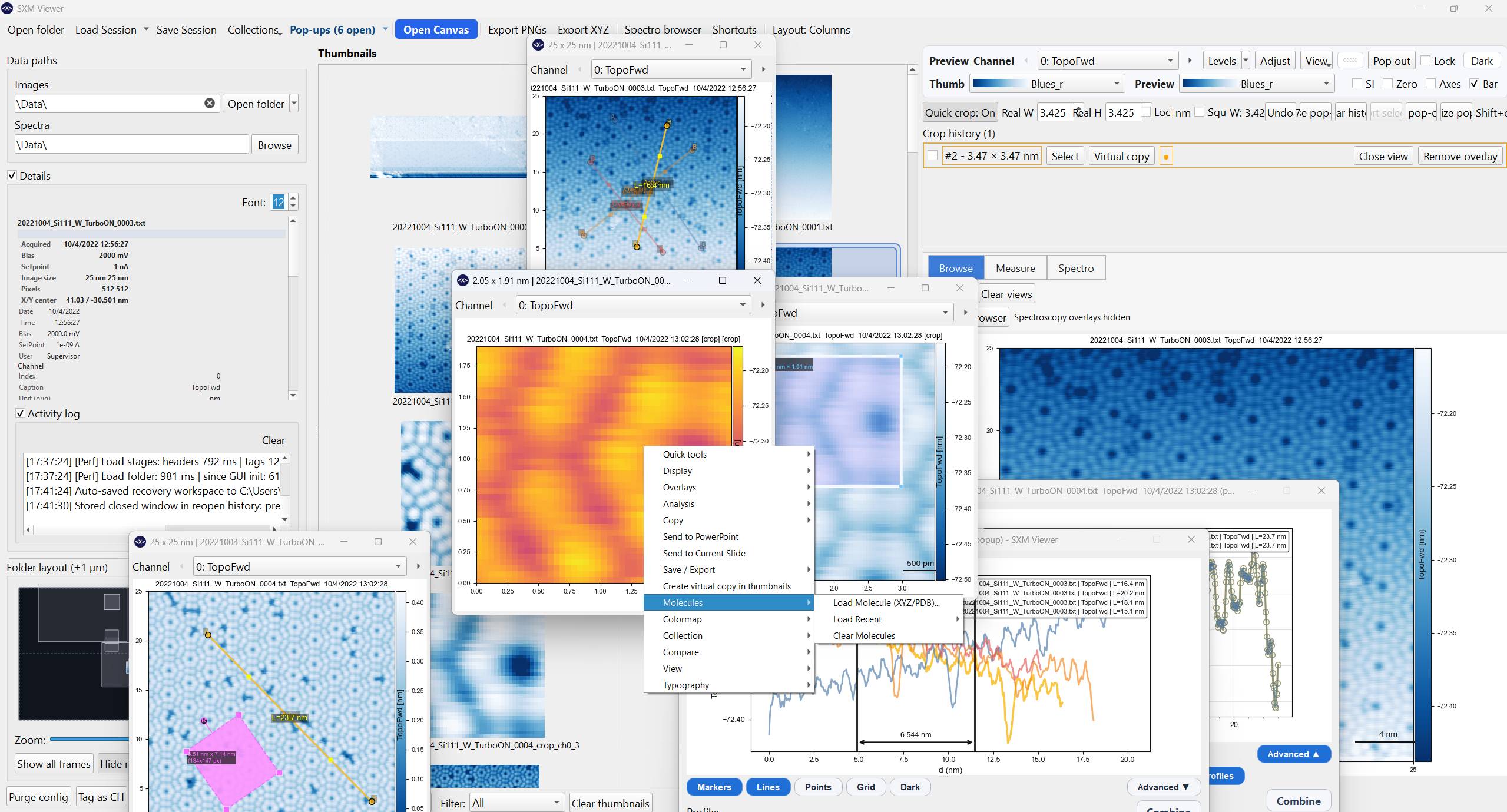
The main preview
Clicking a thumbnail loads it into the main preview pane. The preview shows the full image with colormap, colorbar, scale bar, and any active overlays. A metadata panel alongside it shows acquisition parameters in correctly scaled SI units.
Switching channels
Use the channel selector at the top of the preview area, or the previous and next channel arrows, to switch between simultaneously acquired channels such as topography, current, and KPFM.
The preview header is intentionally channel-first: the channel selector remains the primary persistent control, while lower-frequency actions are grouped into the top-level Image, Display, and Tools menus.
Relative-zero display
Press 0 or use Display -> Values relative to zero to shift the colorbar so it starts at zero. This is useful for constant-height images where absolute z values matter. Auto-contrast and range resets respect this constraint.
Relative axes
Enable Display -> Relative axes to display image axes starting from zero in physical units instead of absolute piezo coordinates.
Acquisition HUD
Enable Display -> Show acquisition overlay to add a top-right HUD showing:
- CC images: bias and setpoint current
- CH images: absolute z position
A few canvas shortcuts worth knowing
Beyond the overlay toggles (Ctrl+1 through Ctrl+5, covered in Overlays): A triggers histogram auto-contrast directly without opening the dialog, M opens the molecule-load dialog, and Ctrl+H toggles the on-canvas shortcut hint text. See Keyboard Shortcuts for the complete reference.
Pop-out windows
Double-click any thumbnail to open it as a floating pop-out window. Pop-outs are independent views with their own channel selector, contrast state, overlays, and analysis state.
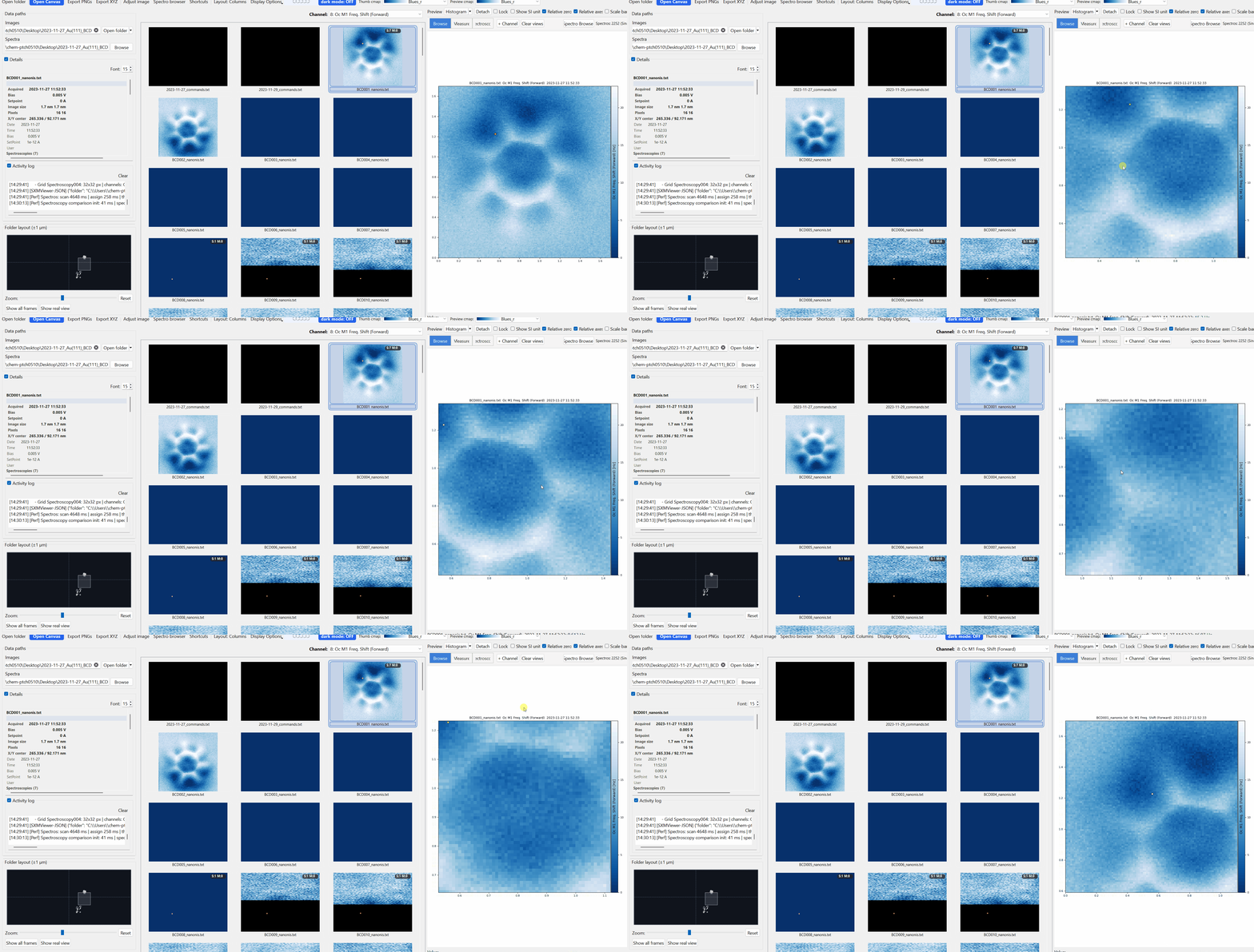
Creating pop-outs from the preview
Right-click the preview canvas -> Pop out to open the current view as a floating window.
What pop-outs support
- independent channel switching
- all overlay types: profiles, angles, molecules, scale bar, acquisition HUD
- local relative-zero toggle
- crop-template and manual crop workflows
- profile-measurement dialogs
- Apply this style to all pop-ups to copy font scale, typography, and display layout from the active popup to the others
Managing pop-outs
| Action | How |
|---|---|
| Bring all to front | Ctrl+Shift+P or toolbar Pop-ups menu |
| Minimize all | Ctrl+Shift+M |
| Arrange or tile | Pop-ups toolbar split-button -> Arrange |
| Close all | Pop-ups toolbar menu -> Close all |
| Reopen last closed | Ctrl+Z when nothing else is available to undo |
| Duplicate active pop-out | Ctrl+D |
The Pop-ups toolbar button is a split button: primary click recalls open pop-outs, while the menu gives per-window focus, arrange, minimize, and restore actions.
Popup size badge
Pop-outs show the physical scan dimensions, or pixel dimensions as fallback, in the window title bar.
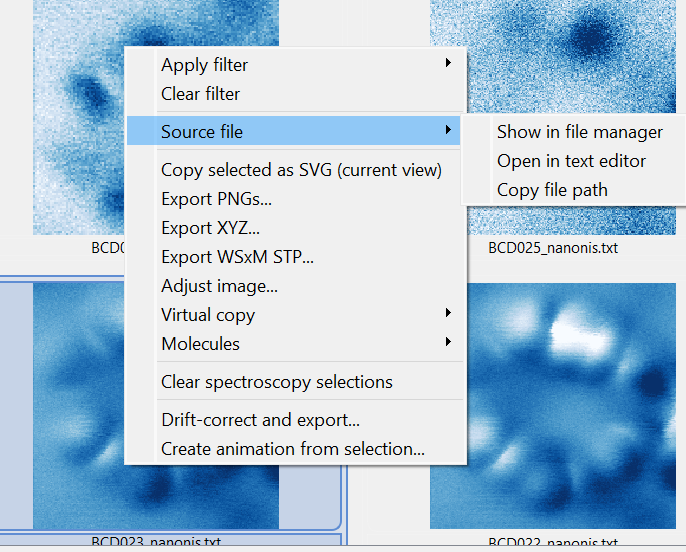
Source-file actions
Right-clicking the preview or a pop-out exposes a Source file submenu so you can:
- reveal the underlying file in the OS file manager
- open the underlying file in the default text editor
- copy the full file path
Display options that sync across windows
Many display settings propagate automatically between the main preview and open pop-outs:
- ticks, colorbar visibility, and colorbar orientation
- title, acquisition HUD, and shortcut hint
- profile and angle overlay visibility
- molecules and scale bar
- frame fill mode
- relative axes override
- layout mode
- dark and light presentation state for the canvas background