Cropping
SXM Viewer has two complementary cropping workflows: a reusable crop template and manual drag cropping on the canvas.
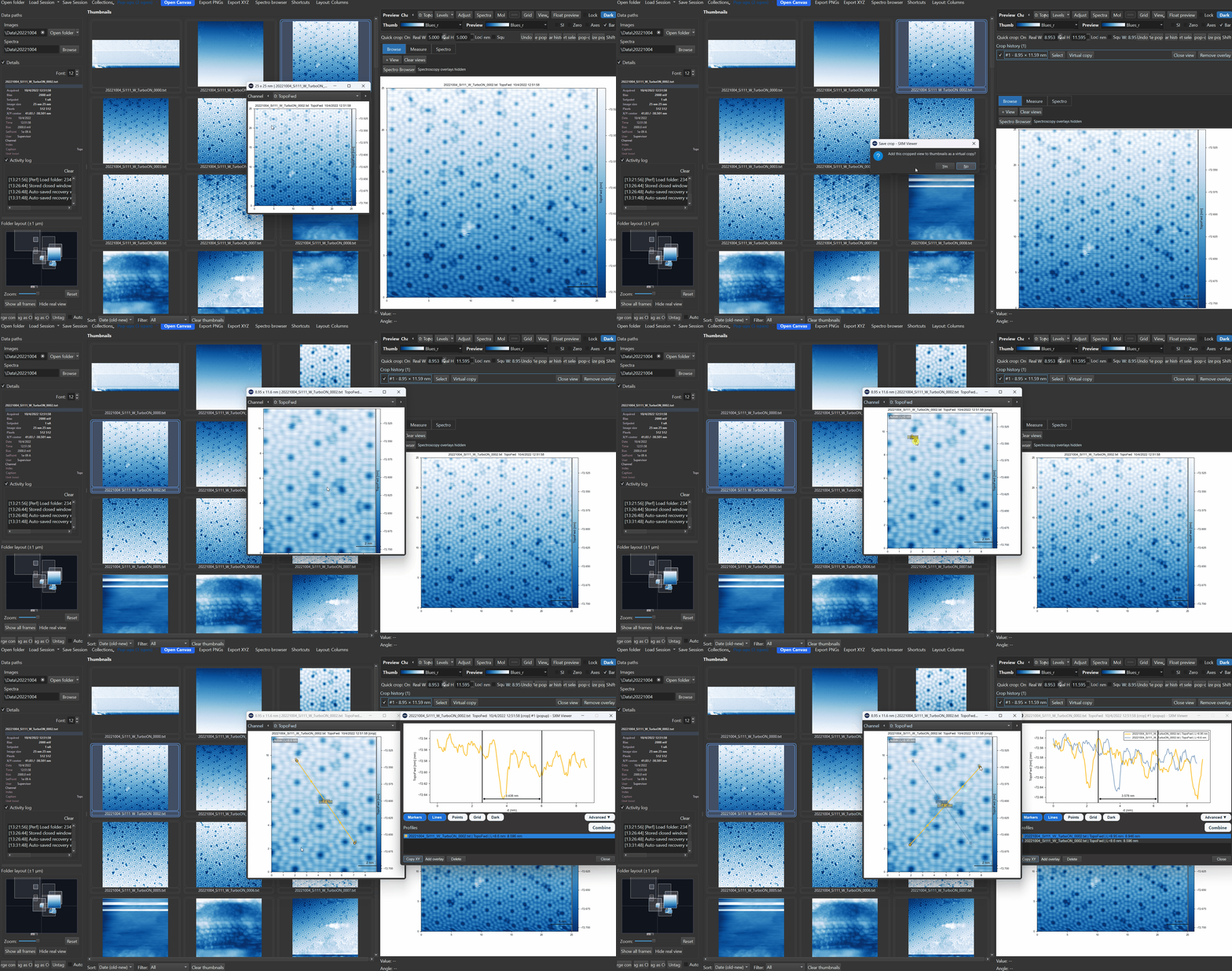
Crop template
The main crop workflow is built around a persistent Crop template row in the preview area. It combines:
- a Crop template: On/Off toggle
- explicit W and H size controls
- an Aspect mode
- an Edit frame button for move/resize/rotate
- an Actions menu for history, export, and pop-out management
When crop-template mode is on, clicking the preview or a pop-out applies the current template immediately and opens the cropped result as a new pop-out.
Template crops respect the current display orientation so the extracted data is consistent whether relative or absolute axes are active.
Aspect modes
The template can operate in three aspect modes:
- Free: width and height change independently
- Keep ratio: template edits preserve the current aspect ratio
- Square: the template is forced to remain square
Manual crop gestures
Template mode does not replace manual drag cropping. On the preview or a pop-out canvas:
| Gesture | Effect |
|---|---|
| Shift + drag | Draw a manual crop rectangle |
| Ctrl + Shift + drag | Force a square manual crop |
| Shift + drag with Aspect = Square and crop-template mode on | Draw a square manual crop |
The result still goes through the normal crop pipeline and opens as a pop-out.
Edit frame
Edit frame is not a separate crop system anymore. It edits the same crop template used by click-to-apply cropping.
Use Edit frame in the crop row, or press Ctrl+E, to move, resize, and rotate the current template before applying it.
Interactions
| Gesture | Effect |
|---|---|
| Drag corner handles | Resize the frame |
| Drag frame body | Move the frame |
| Drag rotate handle | Rotate the frame |
| Ctrl + drag body | Rotate (alternative) |
| Enter | Apply the crop |
| Ctrl+E | Exit editor without cropping |
The crop is extracted with rotated resampling so the full output frame is filled without edge gaps. The top of the output corresponds to the side of the frame opposite the rotate handle, consistently regardless of display mode.
After applying a crop, edit mode exits automatically and the frame is hidden.
Edit frame on pop-outs
The crop-template editor works identically on pop-out windows. Cropped results from pop-outs go through the same crop pipeline as main-preview crops and appear in the thumbnail grid as virtual copies inserted next to the source image.
Crop history and actions
Every applied crop is recorded in the crop-template history. Each row has a checkbox that controls whether that crop outline is drawn on the source image. You can:
- Show or hide individual crop outlines
- Open any past crop as a pop-out again
- Add selected crop history entries to a Collection
- Export selected crops
- Tile or minimize crop pop-outs from the crop Actions menu
Virtual copies
Any crop result can be saved as a virtual copy in the thumbnail grid:
- Right-click a pop-out or preview -> Create virtual copy in thumbnails
- Drag a pop-out window onto the thumbnail area to insert a snapshot at the drop position
Virtual copies carry their analysis state (overlays, display settings) and stay ordered relative to their source image even after grid refreshes.
Undo
Ctrl+Z undoes the most recent canvas edit, including crop operations. The undo stack covers filters, profile and angle overlays, molecule edits, and contrast changes, not just crops.