Spectroscopy Browser
The Spectroscopy Browser is a searchable, filterable tree of every spectroscopy trace associated with the current workspace - organized hierarchically as Image -> Site -> Trace, not a flat table.
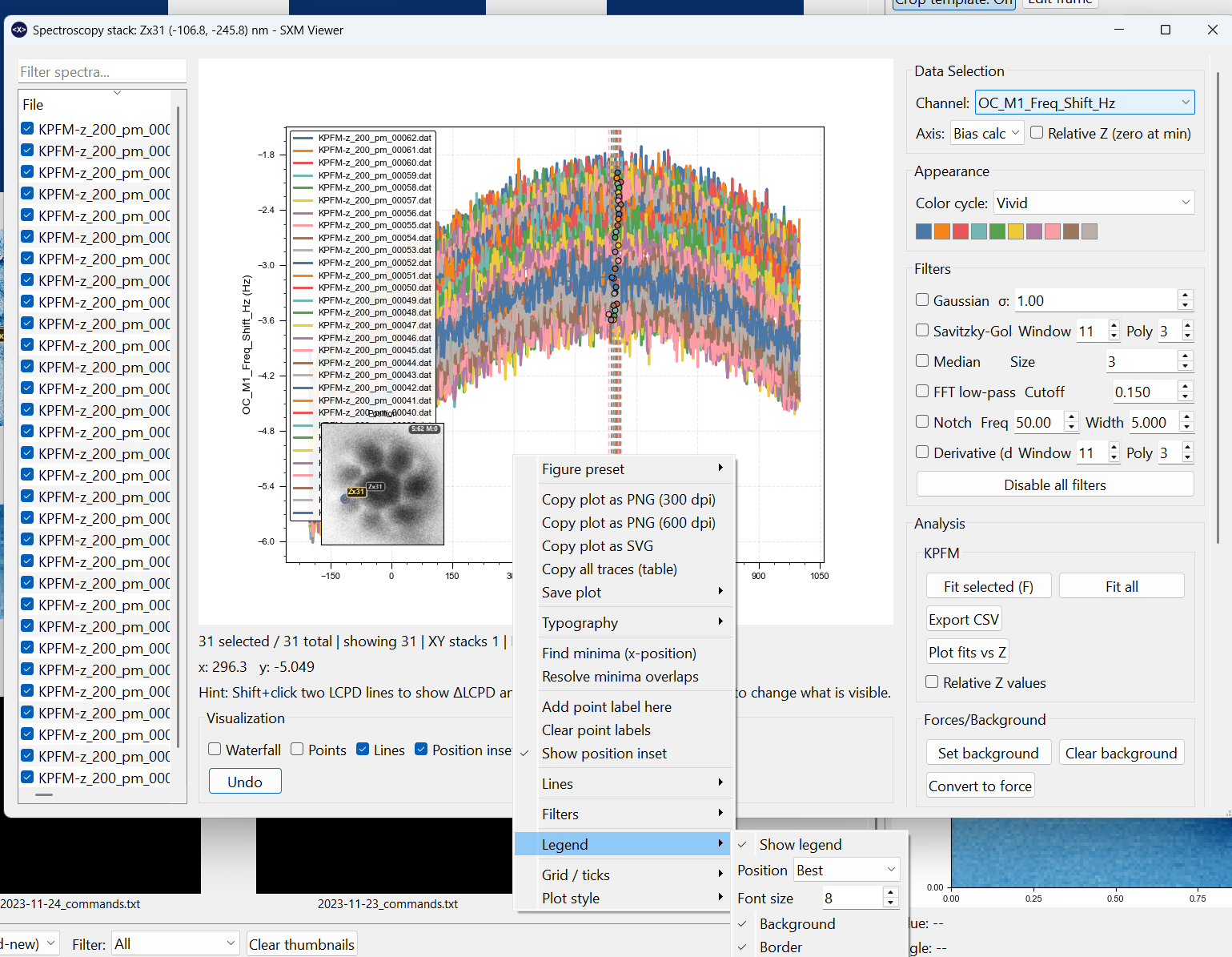
What it shows
Open the browser from the toolbar. Each top-level entry is a source image; underneath it, spectra are grouped into sites (locations that were measured, possibly repeatedly or as a Z-stack) and finally individual traces.
This is useful when you want to:
- see at a glance which images have associated spectroscopy, and how much
- search across image/site/file/channel/position instead of scanning the thumbnail grid
- open several related traces into the same comparison plot
Search and filters
- A search box filters the tree live by image name, site, file, channel, or position text.
- Four checkboxes narrow the tree further: Current image (only spectra tied to the image currently shown in the main preview), Z-stacks, Matrix, and Low confidence (spectra whose automatic image assignment - see Spectroscopy Overview - wasn't confident).
Common actions
Right-click an entry in the tree for:
- Open - opens the trace in a spectroscopy popup
- Assign to current image - manually attaches this spectrum to whichever image is currently displayed, overriding the automatic assignment
- Clear manual assignment - reverts to the automatic assignment
Selecting several entries (Shift/Ctrl-click) and opening them feeds a shared comparison plot instead of opening one popup per trace - see Spectroscopy Overview for the comparison workflow this leads into.
A separate, per-file dialog: Spectro Summary
Right-clicking a thumbnail's spectroscopy miniature (or certain "show spectros for this file" actions) opens a different, per-file dialog - a small modal listing just that file's own spectroscopy entries, with its own preview thumbnail, channel selector, marker-color picker, and (for matrix files) a colormap combo. This is a lighter-weight, single-file complement to the global searchable browser above, not the same window.
Relationship to thumbnail markers
The browser complements the thumbnail-grid workflow rather than replacing it.
Use:
- the thumbnail grid when you want image-first navigation with spatial context (see Thumbnail Grid for the marker symbols, low-confidence indicator, and stack badges drawn there)
- the browser when you want to search/filter across everything at once, independent of which image is currently on screen
Plot controls
Once a trace or comparison is open in a spectroscopy popup, it supports a richer set of display controls, including:
- grid, line, point, and dark-background toggles
- per-trace styling for colour, thickness, and line style
- legend editing for position, font size, background, and border
- smoothing and derivative filters
- typography and export or copy actions