Spectroscopy Overview
SXM Viewer loads spectroscopy files automatically when a folder is opened, associating them with images using robust timestamp-based matching. Spectroscopy data and scan images live in the same workspace rather than requiring separate tools.
Spectroscopy thumbnails
Associated spectroscopy files appear as miniature thumbnails within the main thumbnail grid, positioned near their spatially associated scan image. Markers on the scan thumbnails indicate where each spectroscopy was acquired.
Thumbnail marker customisation
Right-click a spectroscopy thumbnail -> Miniature channel to choose which channel drives the miniature plot. Marker size, colour, and symbol are also customisable for better visibility on different backgrounds.
Selection
| Gesture | Effect |
|---|---|
| Single click | Select spectroscopy |
| Shift+Click | Range-select |
| Ctrl+Click | Add or remove from selection |
| Drag | Rubber-band selection |
| Double-click | Open spectroscopy popup |
Right-click actions
Right-clicking a spectroscopy thumbnail exposes more than just channel selection: Open spectroscopy, Open site summary, Compare this site (opens a multi-trace comparison for every spectrum at that location), Show metadata in Details, Assign to current image (<name>) / Clear manual assignment (see Assignment, sites, and stacks below), plus the Source file submenu.
Assignment, sites, and stacks
Every spectroscopy file is automatically matched to the scan image it most likely belongs to, using spatial and timestamp proximity. Behind that simple appearance, spectra are actually organized into a small hierarchy:
- Sites - physical locations that were measured, grouping repeated or nearby spectra together.
- Stacks - a site measured repeatedly, e.g. at different tip heights (a Z-stack).
- Assignment confidence - each auto-assignment carries a confidence level; a spectrum matched less certainly to its image is flagged as low confidence and drawn differently on the thumbnail marker (see Thumbnail Grid) and can be filtered for specifically in the Spectroscopy Browser.
If an automatic assignment is wrong, right-click the spectroscopy thumbnail (or its entry in the browser tree) and choose Assign to current image to manually attach it to whichever image is currently displayed, or Clear manual assignment to revert to the automatic match.
Spectroscopy browser
Open the Spectroscopy Browser from the toolbar for a searchable, filterable tree of every associated spectrum, organized as Image -> Site -> Trace - see Spectroscopy Browser for the full search/filter controls and a note on the separate per-file Spectro Summary dialog.
Spectroscopy popup
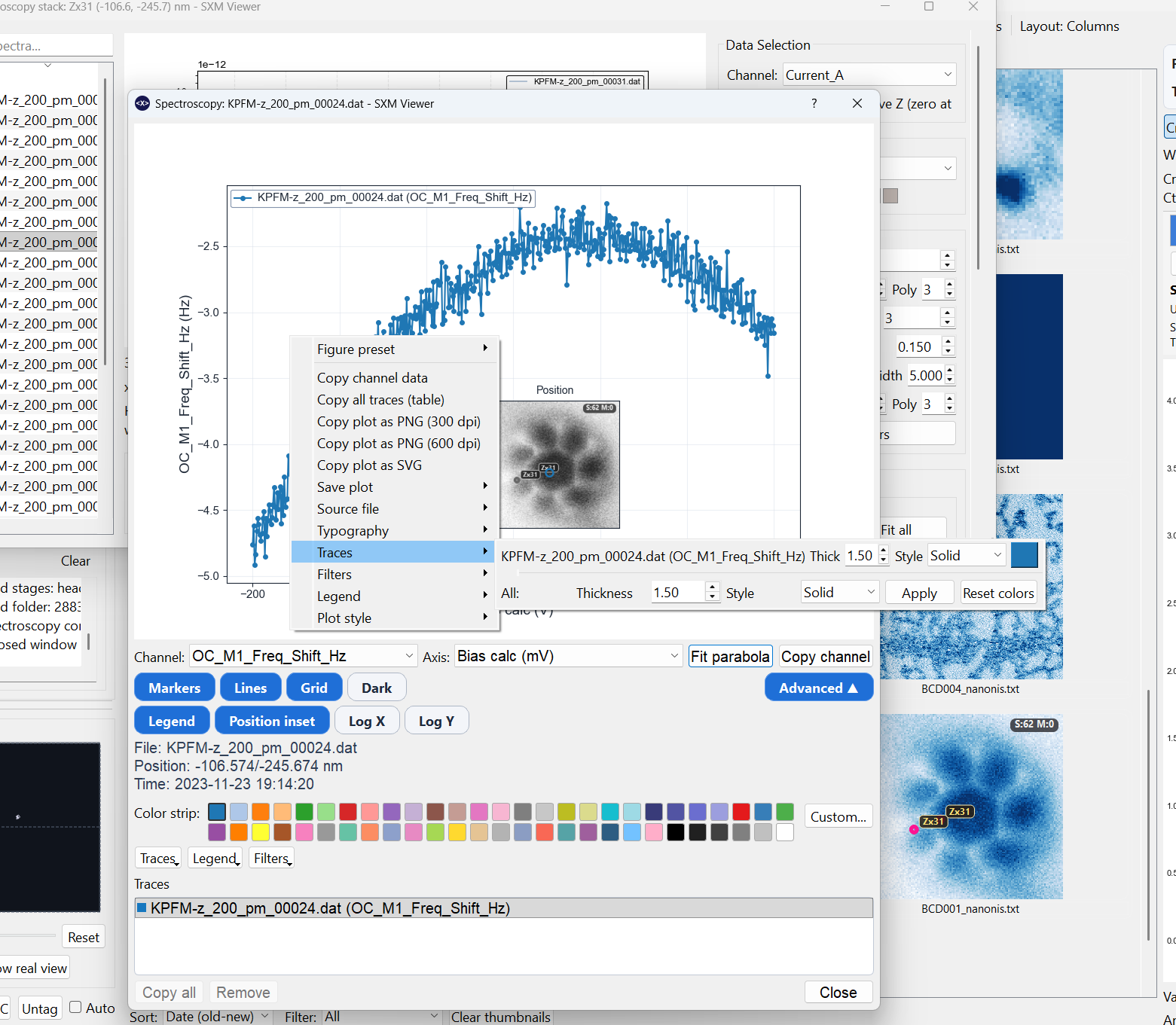
The spectroscopy popup uses the same general layout style as the profile-measurement window: plot on top, control strip underneath, advanced controls on demand, and a trace list below.
It can display one spectrum or several overlaid traces in the same window.

Core controls
The main popup keeps the high-frequency controls visible:
- Channel
- Axis
- Fit parabola - fits the trace to a quadratic and reports its coefficients, RMSE, and the fit's vertex position (labeled LCPD - local contact potential difference - since this fit is most often used on bias-spectroscopy/KPFM data). See Parabola Fits for what these numbers mean and how the same fit is used for batch and matrix-wide fitting.
- Copy channel
- toggles for Markers, Lines, Grid, and Dark
Advanced controls
The Advanced section exposes:
- Legend toggle
- Position inset
- Log X / Log Y
- colour swatches for the active trace
- menus for Traces, Legend, and Filters
Position inset
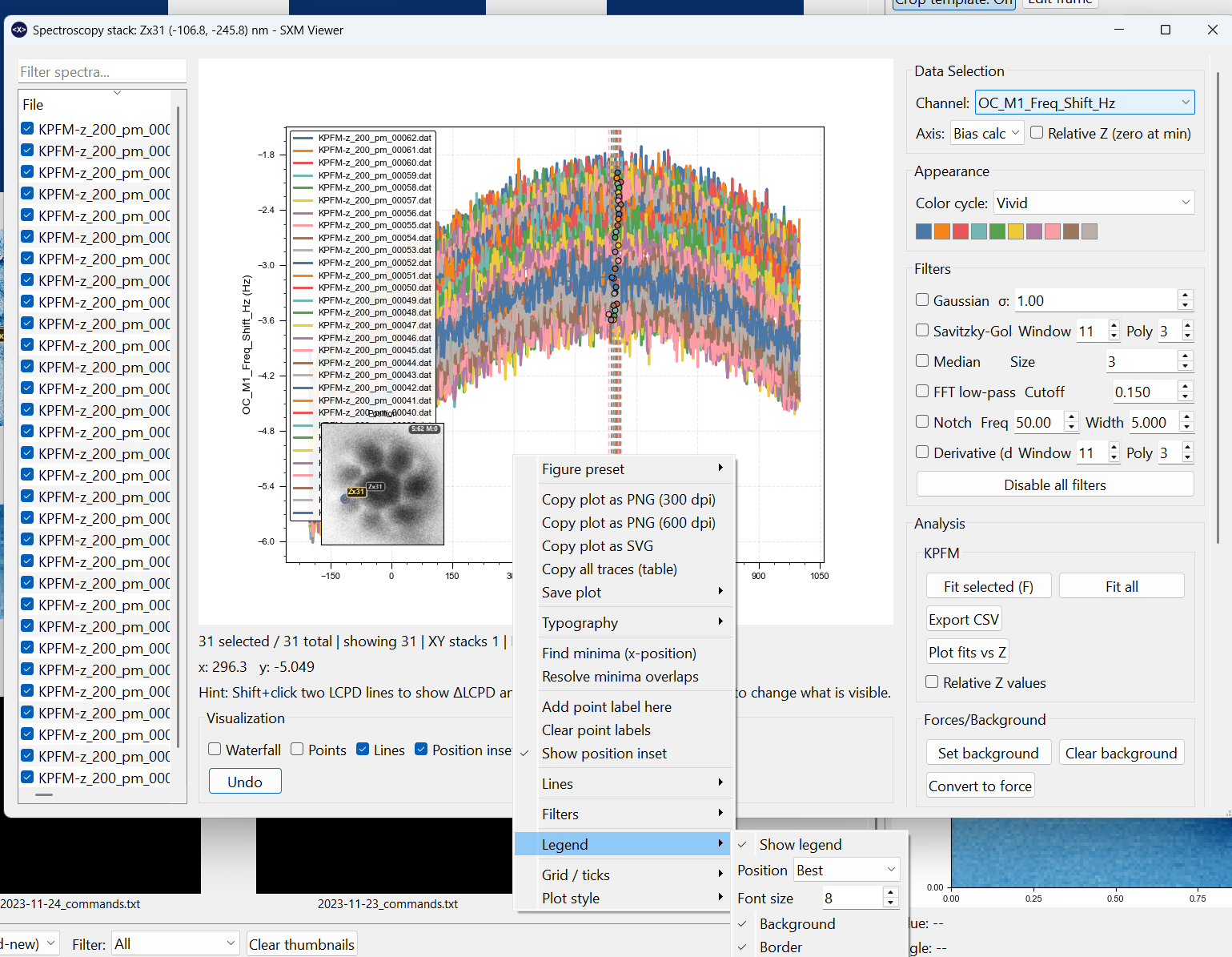
The Position inset is a miniature of the acquisition image with a marker on each spectrum's location. It is available in both the single Spectrum popup and the All spectra on this image comparison window, and both share the same option set. Enable it from the Advanced controls (or the Position inset toggle); then open its options either from the Inset button or by right-clicking the inset itself.
Options (identical in both windows):
- Show other points - show every spectrum's marker, or only the current one.
- Marker symbol and Size, Filled markers, and Marker color (or Use trace color so each marker matches its curve).
- Marker outline - toggle the contrasting halo that keeps markers visible on any colormap, and set its colour (or Auto outline for the adaptive black/white halo).
- Marker labels - annotate each marker with any of:
- Initial Z - the spectrum's starting tip height,
- Time - acquisition time,
- Acquisition order - the spectra numbered by time (
#1,#2, ...), - Image Z (constant-height) - when the inset background is a constant-height scan, its absolute Z is shown in the inset title, handy for comparing the tip height against each spectrum's initial Z.
- Inset colormap - Follow preview (track the main Preview's colormap) or pick an in-situ override from the featured shortlist.
Interactions:
- Click a marker to select that spectrum - in the comparison window it highlights the matching row in the File list; in the single popup it selects the matching curve - just like clicking it in the list.
- Drag the inset to reposition it over the plot.
- Drag the corner grip to resize it. The inset keeps the scan's true aspect (square or rectangular) and the grip sits right on the image corner.
- Changing the preview colormap updates any open inset automatically (unless the inset uses its own colormap override).
Trace styling
The popup supports per-trace visual editing without needing the full comparison dialog:
- change trace colour
- change line thickness
- change line style
- apply a style to all traces
- reset trace colours to the active palette
The trace list also supports right-click styling for the currently selected trace.
Legend editing
The popup legend supports:
- show or hide
- position
- font size
- background on or off
- border on or off
Filters
Single-spectrum popups can now apply the same core signal-processing stack used in the comparison workflow:
- Gaussian smoothing
- Savitzky-Golay smoothing
- Median filtering
- FFT low-pass
- Notch filtering
- first derivative
dY/dX
These are display and analysis filters for the plotted traces; they do not rewrite the source file.
Typography and export
Font family, bold, italic, and underline are accessible from the right-click Typography menu and stay consistent with the rest of the GUI.
Right-click the spectroscopy plot for:
- PNG, SVG, and PDF export
- direct data-copy actions
- trace styling
- legend editing
- source-file actions
Source-file actions
Both spectroscopy thumbnails and spectroscopy popups expose a Source file submenu so you can:
- show the underlying file in the operating-system file manager
- open the file in the default text editor for the current OS
- copy the full file path
Spatial markers on images
When spectroscopy display is enabled, markers appear on the preview and pop-outs at the acquisition positions. Toggling spectroscopy on or off does not reload the data; the association is cached.
Marker positions are correctly placed in both absolute and relative axes display modes.
Supported spectroscopy types
- Single-point I(V), I(z), df(V), df(z) traces
- Grid or matrix spectroscopy (see Matrix Scans)
- KPFM data (see KPFM)
- Parabola fits, used across single-spectrum, batch, and matrix-wide workflows (see Parabola Fits)